Prompt structure
A universal structure that works for most tasks: subject → action → environment → style → technical parameters. Each block answers a specific question:
- Subject — who or what is in the frame
- Action — what is happening, and in what pose
- Environment — where it takes place and what surrounds it
- Style — photorealism, illustration, 3D, a specific technique
- Technical parameters — lighting, camera angle, lens, color palette
An example of a structured prompt:
A young woman in a white doctor's coat sits at a desk, holding a tablet and reviewing patient data. A modern medical office with large windows, soft natural light from the left. Realistic photograph, 50mm lens, f/2.8 depth of field, neutral color palette.Practical tips
Quick answers for common situations — what belongs in the prompt and what is better set in the request parameters.
If you are editing a photo
Don't write “make it better” — say exactly what should change: “remove the people in the background”, “replace the background with an office”, “keep the face unchanged”.
If you uploaded several references
Specify what to take from each one: “take the face from photo 1, the outfit from photo 2, the background from photo 3”.
If you need text in the image
Write the exact phrase in quotes and specify the language. For text in images, Nano Banana 2, Nano Banana Pro, and Qwen Image work best.
If you need a transparent background
Models cannot generate transparency directly. Ask for a solid-color background — for example, plain black — and then remove it with Recraft Remove Background. You will get a clean PNG with transparency.
If you want to set the resolution or format
Don't write “make it 4K” or “3:2 aspect ratio” in the prompt — the model will ignore it. Resolution and aspect ratio are chosen in the request parameters before generation.
If you don't like the result
Change one parameter at a time: first the style, then the lighting, then the camera angle. Otherwise it will be hard to tell what actually improved the image.
What the settings mean
Besides the prompt itself, every model has a set of parameters configured before you run it: resolution, aspect ratio, output file type, and a number of model-specific options. There is no need to put them in the prompt — the model will ignore them.
Resolution: 1K, 2K, 4K
Resolution controls the level of detail in the image.
- 1K — faster and cheaper. Good for tests, ideas, social media, and quick drafts.
- 2K — the sweet spot. Noticeably more detail, a solid choice for most tasks.
- 4K — maximum quality, but usually more expensive and slower. Needed for print, banners, commercial layouts, and complex scenes.
If in doubt, start with 1K or 2K and raise the resolution once the content itself is right.
Image format
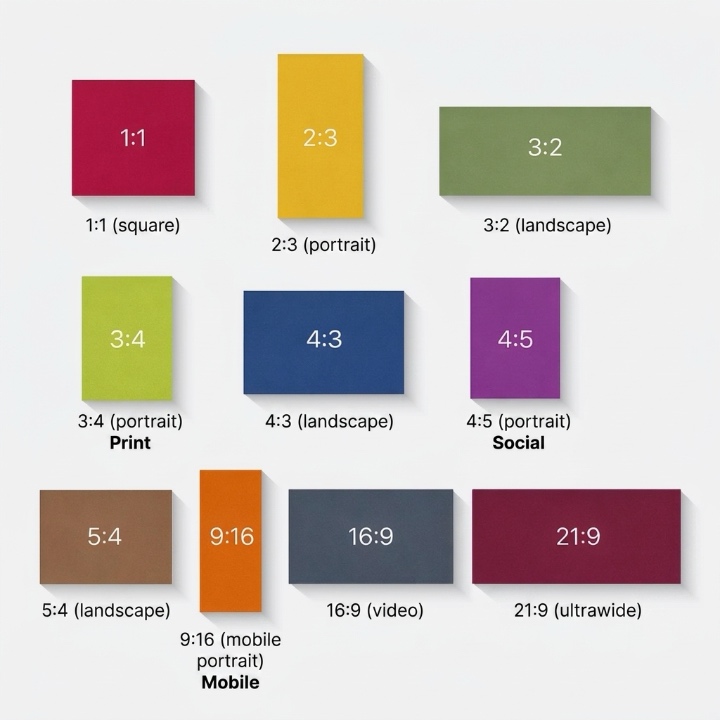
Format here means the aspect ratio, not the file type.
- 1:1 — square. For avatars, cards, and posts.
- 4:5 — vertical social media post.
- 16:9 — wide frame: banners, presentations, covers, video thumbnails.
- 9:16 — Stories, Reels, Shorts.
- 3:4 and 4:3 — more classic photo proportions.
- 21:9 — ultrawide frame for cinematic compositions and headers.
Pick the format for the task up front, so you don't have to crop important parts of the image later.
Output file type
- PNG — usually heavier, but cleaner; better for graphics, text, interfaces, and cases where precision matters.
- JPG / JPEG — lighter files, a good fit for regular photos and quick publishing.
- MP4 — used by video models when the output is a clip rather than an image.
No model outputs a transparent background directly. If you need one, generate on a solid-color background and run the result through Recraft Remove Background.
Additional settings
Not every model has these parameters — the exact set depends on the model you choose.
Quality (medium / high)
Available in GPT Image, for example. Medium is for quick iterations and drafts, high is for final material. Affects the generation cost.
Clip duration
Set separately for video models. Kling — 5 or 10 seconds, Seedance — 4 to 15 seconds, Grok Video — up to 30 seconds. The longer the clip, the higher the cost.
Audio in video
In Kling 2.6 it enables synchronized generation of speech, effects, and ambience — at a higher cost than silent output. Seedance generates audio natively along with the footage.
Mode (fun / normal / spicy)
In Grok Video it controls the character of motion: fun — a playful interpretation, normal — balanced dynamics, spicy — more intense, expressive movement. Spicy is unavailable when working with references.
Google Search
Available in Nano Banana 2 and Seedance. Pulls up-to-date information from the web straight into the request context — useful for generations about recent topics, events, and real-world objects.
NSFW Checker
An extra check of the result for sensitive content. Turn it on when the output goes to public channels or materials for a broad audience.
Common mistakes
A prompt that is too short
A request like “a beautiful office” leaves the model complete freedom of interpretation, so the result will be random — different every time. A minimum viable prompt contains at least a subject, an environment, and a style.
An overloaded prompt
If a request contains dozens of requirements, the model will start ignoring some of them. A useful rule: one request — one scene. If you need several related frames, run a series of requests with the same structure.
Contradictory instructions
“A minimalist composition with lots of detail”, “a photograph in watercolor style” — combinations like these produce unpredictable results. It is better to explicitly pick one approach and describe it in detail.
Composition and framing
Controlling composition is the most underrated lever in prompting. Specify:
- Shot size: close-up, medium, wide
- Angle: eye level, from above, from below, isometric
- Focal length: 24mm for wide scenes, 50mm for natural perspective, 85mm+ for portraits
- Depth of field: f/1.4 for strong bokeh, f/8 for a sharp wide shot
- Composition techniques: rule of thirds, centered composition, leading lines
Style and aesthetics
It is better to describe style through technique and characteristics than through the names of artists or brands. Technical terms are more universal and predictable:
- “Watercolor illustration with soft color transitions”
- “Isometric 3D graphics, flat shadows, limited palette”
- “Cinematic photography, warm palette, subtle grain”
- “Technical drawing, thin lines, monochrome”
If you need to convey a specific mood, describe it with adjectives: “cozy”, “austere”, “dynamic”, “contemplative”. Models understand these words just as well as technical terms.
Working with references
Reference images are a shortcut to the result you want when it is hard to describe in words. A few practical rules:
- 1 reference — to hold on to a single aspect: composition, color, or a character.
- 2–4 references — for a series of related frames with a unified style.
- 5–10 references — for fine-tuning the aesthetics, when averaging the character matters.
- Don't mix fundamentally different styles. If one reference is minimalist and another is packed with baroque detail, the model will average them into a mediocre result.
Negatives and exclusions
Not all models handle “don't do this” instructions equally well, so phrase your requirements as affirmative statements:
- Instead of “no people” — “empty space”
- Instead of “not blurry” — “sharp image, high detail”
- Instead of “not bright” — “muted color palette”
Templates for common tasks
Product shot for e-commerce
[Product] on a [neutral/contrasting] background, [studio/natural] lighting [from a specific side]. Clean composition, minimal distracting elements, focus on material and texture. Realistic photograph, 50mm lens, f/8, 4K resolution.Article illustration
Conceptual illustration on the topic of [article topic]. [Style: flat graphics / watercolor / engraving]. Limited palette of [3–4 colors]. Centered composition, simple background. 16:9 aspect ratio.Social media image
[Scene/subject]. Modern digital photography, distinct character, contrasty lighting. 4:5 aspect ratio for the feed. Composition with headroom at the top for text.Presentation slide visual
[Metaphor/image for the topic], minimalist visual language, neutral palette, a consistent look across the slide series. 16:9 aspect ratio, free space on the right side of the frame.Iterative workflow
Getting a perfect result on the first try is the exception rather than the rule. Work in iterations:
- Run 3–4 draft requests with different wordings
- Pick the one closest to what you need
- Refine the details in the next request and add a reference
- Save the successful prompt as a template so you don't have to rebuild it from scratch
The service keeps your full prompt history, so you can return to wordings that worked and use them as a starting point for new tasks.